
How to Use a Dashcam Properly: Settings, Storage and Footage
Introduction

A dashcam is one of those gadgets that looks simple until you actually need the footage. It may be recording every journey, but that does not guarantee the clips will be clear, correctly dated, easy to retrieve or protected from being overwritten. Good dashcam use is about setting it up once, checking it properly, and doing a little maintenance now and again.
This guide explains how to use a dashcam properly, from mounting and recording settings to microSD card care and saving footage after an incident. If you are still choosing a model, browse the latest dashcams and think about the whole setup, not just the camera itself.
Start with a clean, sensible installation
Mounting position has a huge effect on footage quality. The camera should usually sit high on the windscreen, close to the rear-view mirror, where it has a wide view of the road without blocking your line of sight. Avoid placing it behind tinted glass, heavy dotted windscreen areas or anywhere the wipers do not clear properly.
Before sticking the mount permanently, power the dashcam and view the live image. The horizon should sit around the middle of the frame, with enough bonnet visible to give context but not so much that the camera wastes half the image on your own car.
- Clean the glass before fitting the mount.
- Route the power cable neatly along trim where possible.
- Check that airbags are not obstructed by cables.
- Test the footage in daylight and at night.
Choose the right resolution
Resolution affects detail, file size and heat. Many buyers assume 4K is always best, but a good 1440p dashcam can outperform a weak 4K model with a poor sensor. For everyday evidence, clarity, exposure control and plate readability matter more than headline numbers.
For most drivers, 1080p is a reasonable minimum, 1440p is a strong middle ground, and 4K is worth considering if you want extra plate detail and have enough storage. Higher resolution creates larger files, so pair it with a suitable high-endurance memory card.
Set loop recording properly
Loop recording lets the dashcam keep recording when the card fills by overwriting the oldest unlocked files. Without loop recording, the camera may stop when storage runs out, which is exactly what you do not want.
Most dashcams offer one, three or five-minute clip lengths. One-minute clips are easy to handle but create lots of files. Five-minute clips are tidier but can be slower to transfer. Three minutes is a practical everyday setting for most drivers.
Understand locked and emergency files
Dashcams often use a G-sensor to detect sudden movement and protect the current clip. This is useful after a collision, but if the sensitivity is too high, ordinary potholes can lock too many files and fill the card with protected recordings.
Set G-sensor sensitivity to medium, then adjust after a week of normal driving. If you see frequent emergency clips from harmless bumps, reduce sensitivity. If it fails to lock footage during heavy braking, increase it slightly.
Use a proper high-endurance microSD card
The memory card is part of the dashcam system. A cheap card designed for occasional photos may fail quickly because dashcams constantly write and overwrite video. High-endurance microSD cards are designed for continuous recording and hot car interiors.
- Use the card size recommended by the dashcam maker.
- Choose high-endurance cards from recognised brands.
- Avoid unknown marketplace cards with suspiciously low prices.
- Format the card inside the dashcam, not just on a computer.
If your camera freezes, restarts or reports recording errors, test a different card before assuming the dashcam is faulty.
Format the card regularly
Formatting clears file fragments and helps prevent corruption. Some dashcams remind you to format the card every few weeks. If yours does not, make it part of your routine. Monthly formatting is sensible for regular drivers, while heavy users may prefer every two weeks.
Always save any important clips before formatting. Formatting normally erases all video, including footage you may later want.
Keep date and time accurate
Correct timestamps make footage easier to use as evidence. Check the date and time after setup, after daylight saving changes and after firmware updates. Some GPS-enabled models update the clock automatically, but it is still worth checking.
An incorrect timestamp does not always make footage useless, but it can create unnecessary arguments when matching clips to an incident, journey, police report or insurance claim.
Check audio and privacy settings
Many dashcams record cabin audio by default. Audio can help capture impact sounds, horn use or conversations after an incident, but some drivers prefer to disable it for privacy. Make a deliberate choice rather than leaving the default unchanged.
If you share or upload footage, consider whether number plates, conversations or passengers are visible or audible. For insurance purposes, keep the original file intact and avoid unnecessary editing.
How to retrieve footage
There are usually three ways to retrieve dashcam footage: remove the microSD card and use a computer, connect by Wi-Fi through a phone app, or plug the dashcam directly into a computer with a cable. The fastest method is often removing the card, especially for large files.
After an incident, stop driving when safe, switch the dashcam off if necessary, and copy the relevant clips as soon as possible. Remember that the incident may appear across more than one file, especially if it happened near the end of a loop segment.
- Copy the original files before trimming or editing.
- Save clips from before, during and after the incident.
- Back up important files to cloud storage or another drive.
- Label the folder with the date, location and incident type.
Make footage more usable
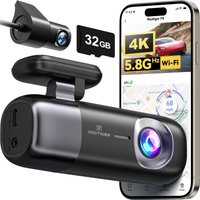
Usable footage is not only about resolution. A dirty windscreen, bad camera angle or strong dashboard reflection can ruin an otherwise good dashcam. Clean the inside of the windscreen as well as the outside, especially in winter when haze and condensation build up.
At night, reduce reflections by moving shiny dashboard objects and keeping the lens clean. Some drivers add a polarising filter to reduce glare, although it may slightly darken the image.
Troubleshooting common problems
If the dashcam will not power on, check the socket, cable and fuse before replacing the unit. If it powers on but does not record, reformat the card or test a new high-endurance card. If the picture looks soft, remove any protective film from the lens and clean both the lens and windscreen.
Random restarting can indicate overheating, a weak adapter or a failing memory card. App connection problems are often caused by the phone switching away from the dashcam Wi-Fi network. Reconnect manually and disable mobile data switching temporarily if needed.
Accessories worth considering
Useful accessories include high-endurance cards, spare adhesive mounts, rear cameras, hardwiring kits and cable routing tools. Parking mode users may also need a voltage-protected hardwire kit or a dedicated battery pack.
You can also compare broader car electronics if you are building a more complete in-car setup.
Final checklist
- Mount the dashcam high and level.
- Use 1080p as a minimum, with 1440p or 4K if storage allows.
- Enable loop recording.
- Use a high-endurance microSD card.
- Check date, time and audio settings.
- Test footage before relying on it.
- Save important clips before they are overwritten.
A dashcam is most useful when it quietly works in the background. Set it up properly, check it occasionally and treat the memory card as a key part of the system.